
Table of contents expand_more
Getting started with OpenGlob Tasks
OpenGlob Tasks is designed to help you focus on what matters today.
It’s the first live application in the OpenGlob ecosystem, built with a mobile-first mindset. The interface is intentionally simple. You open the app and immediately see your work. No dashboards to configure. No setup steps to complete.
You can access it anytime at
https://tasks.openglob.com
If you already have an OpenGlob account, you can sign in instantly using Single Sign-On. There’s no separate registration.
Your main task view
When you enter the app, you land on your primary task list.
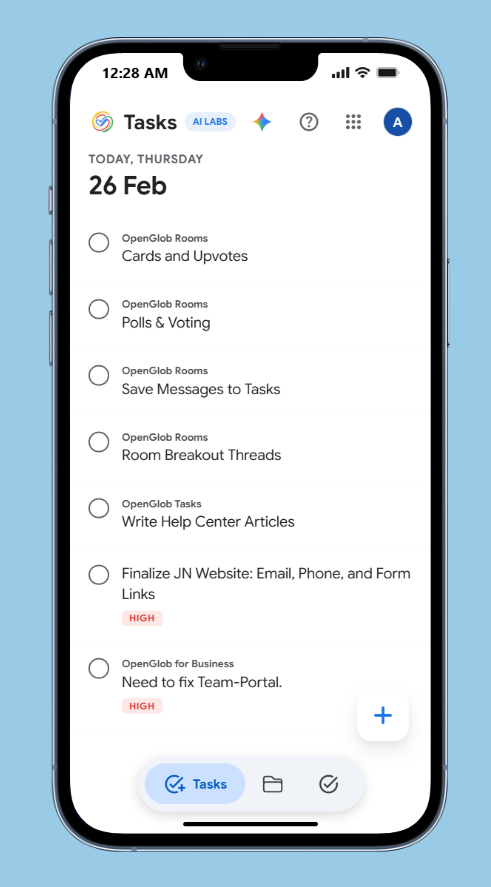
At the top, the date keeps you anchored in the present. Below that, your tasks appear in a clean list format. Each item shows its title and priority. You can tap the circle beside a task to mark it complete. You can also swipe for quick actions.
The layout is minimal by design. The goal is clarity, not decoration.
Switching to Groups
If you prefer to organize your work into categories, you can switch to the Groups view using the bottom navigation.
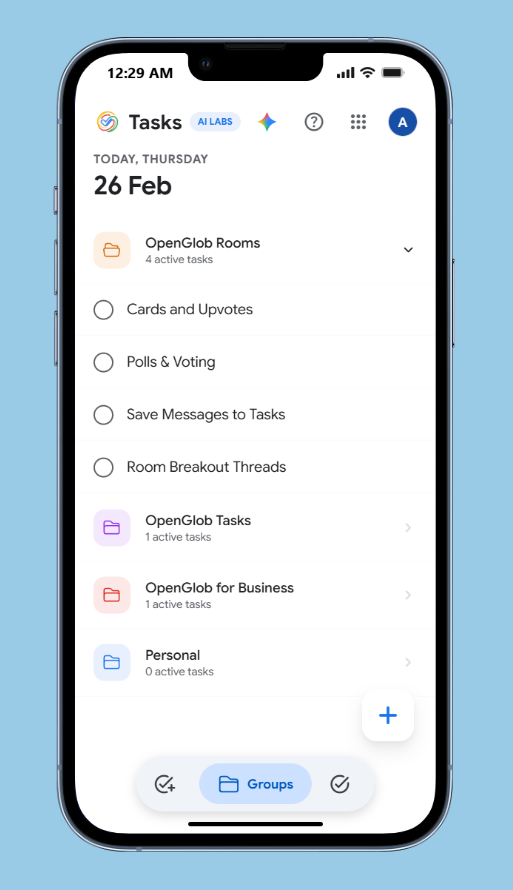
Groups function as lightweight containers. For example, you might have:
OpenGlob Rooms
OpenGlob Tasks
OpenGlob for Business
Personal
Inside each group, you’ll see only the tasks assigned there. You can expand or collapse sections quickly. This keeps your work structured without turning the app into a complex project manager.
Groups are optional. You can use Tasks with or without them.
Adding a new task
To create a task, tap the floating plus button.
A creation panel appears from the bottom of the screen.
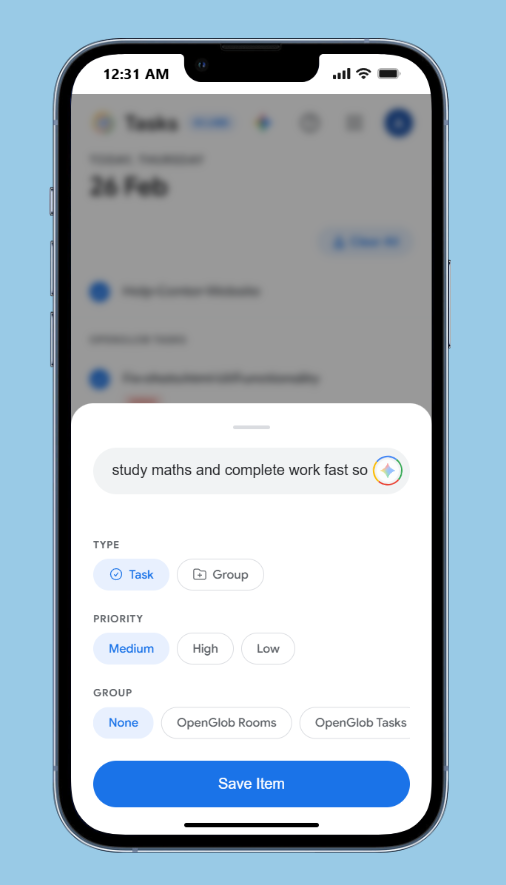
Here, you can type naturally. For example:
“study maths and complete work fast so”
You don’t need perfect formatting. Just write what’s on your mind.
Below the input field, you can choose:
Task or Group
Priority level
Group assignment
Then tap Save Item.
AI refinement
If you choose to use AI refinement, the system can help restructure your task into something clearer and more actionable.
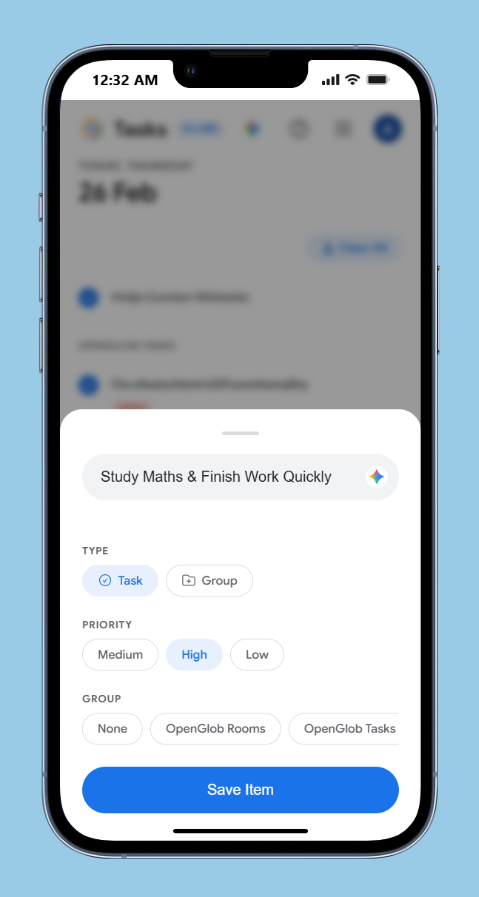
For example, your rough input might become:
“Study Maths & Finish Work Quickly”
You can adjust priority at the same time. In this case, the priority was changed to High.
The AI is there to support clarity. It does not override your decision. You remain in control of what gets saved.
This makes capturing ideas fast while still keeping your task list readable.
Daily Plan
OpenGlob Tasks also includes a Daily Plan feature.
It analyzes your current tasks and generates a structured plan for the day.
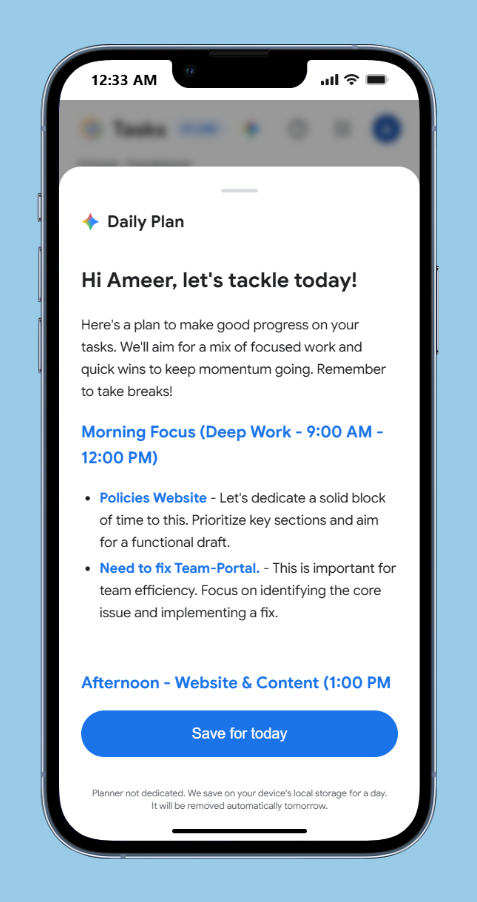
The planner may divide your day into focused blocks. It suggests when to prioritize deep work and when to tackle smaller tasks.
The plan is temporary. It saves locally for the day and resets automatically tomorrow. This prevents backlog pressure from building up.
The intention is simple: help you approach today with clarity.
Tracking progress
Inside your profile section, you can view basic performance insights.
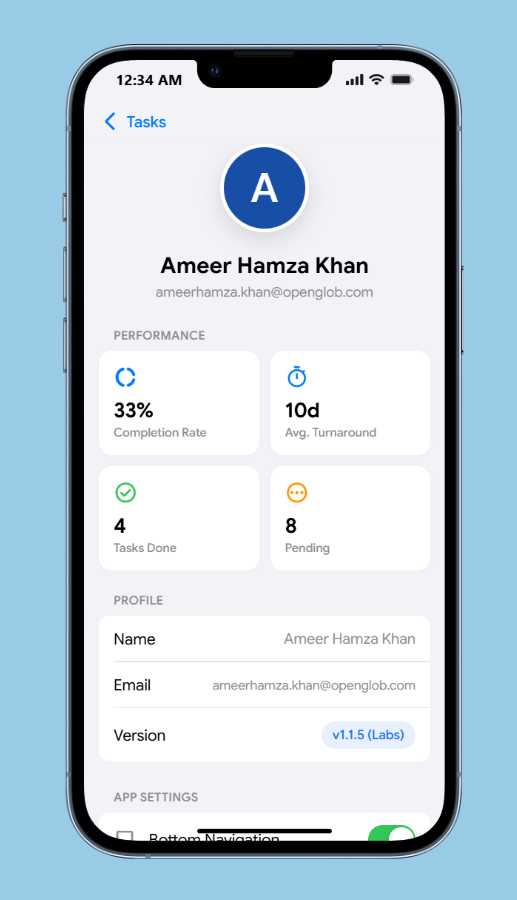
You’ll see:
Completion rate
Average turnaround time
Tasks completed
Pending tasks
These metrics are lightweight and informational. They’re not designed to gamify productivity. They exist to provide perspective.
You can also view your account information and app version from this screen.
How it fits into OpenGlob
OpenGlob Tasks uses OpenGlob Single Sign-On for authentication. You sign in once through
accounts.openglob.com
and your identity carries across supported services.
As the OpenGlob ecosystem expands, your Tasks data remains connected to your unified account.
Start using it
You don’t need configuration.
You don’t need onboarding steps.
Just sign in and begin.
OpenGlob Tasks is built to stay simple as it evolves.
The structure is stable. The interface is calm.
Your focus stays where it should be.