
Table of contents expand_more
OpenGlob Rooms Training and Help
Welcome to the official training guide for OpenGlob Rooms. This documentation covers everything you need to know about creating, managing, and collaborating in secure, real-time conversation spaces.
1. Getting Started: Create or Join a Room
OpenGlob Rooms is designed for immediacy. You can start a secure session in seconds without complex configurations.
To create a new Room:
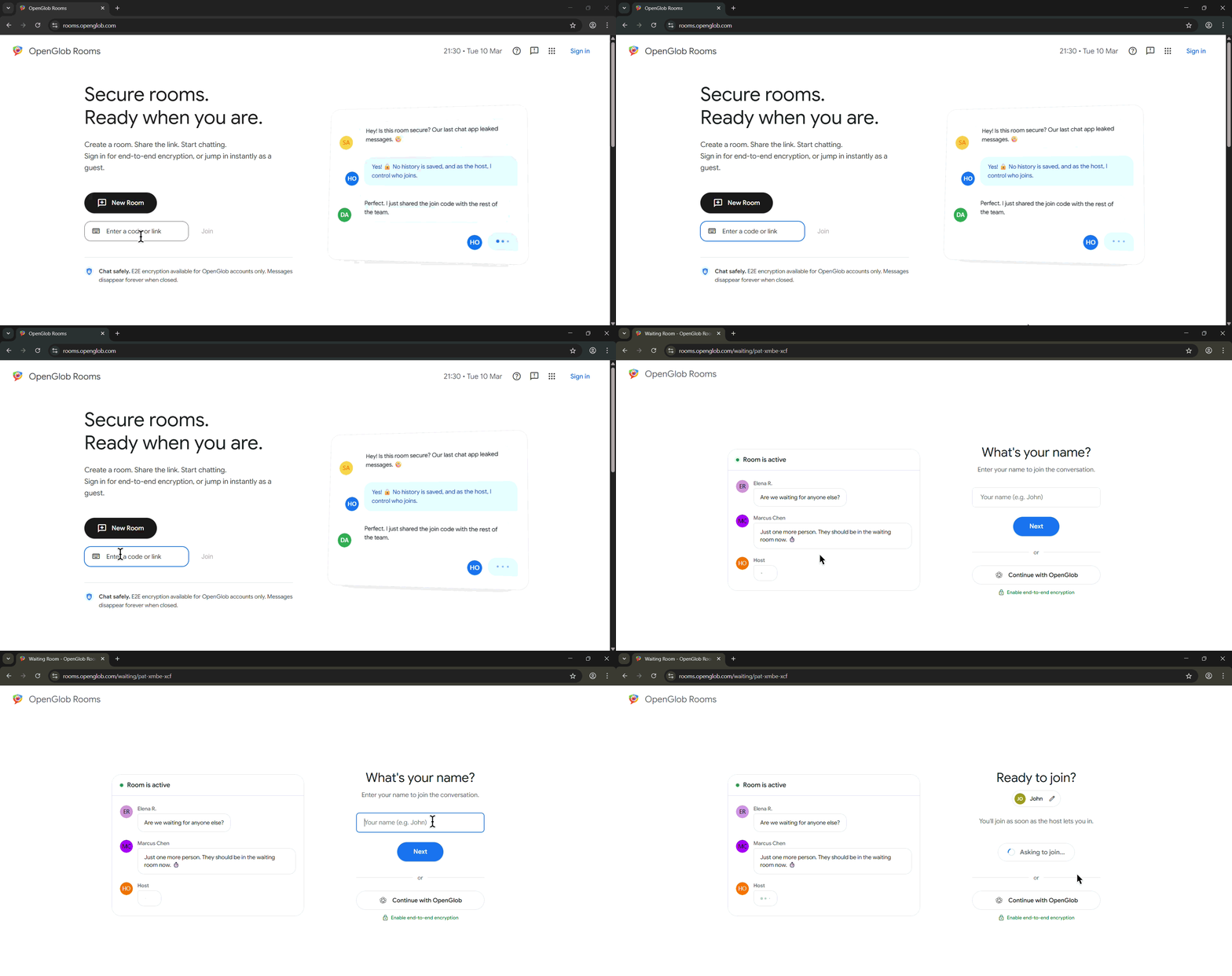
1. Navigate to the OpenGlob Rooms landing page.
2. Click New Room to instantly generate a unique room code and environment.
3. You will enter the setup screen to provide your name or sign in with your OpenGlob SSO account for enhanced features.
To join an existing Room:
1. Enter the room code or paste the full link into the join field on the home screen.
2. If the room is set to Open Access, you will join immediately.
3. If the room is Trusted, you will enter a waiting state until the host admits you.
Note on Access Limits: Guests can host up to 8 participants for 25 minutes, while signed-in OpenGlob users enjoy extended limits of 20 participants and 60-minute sessions.
2. Professional Collaboration Tools
OpenGlob Rooms includes built-in tools to structure your discussions beyond standard text chat.
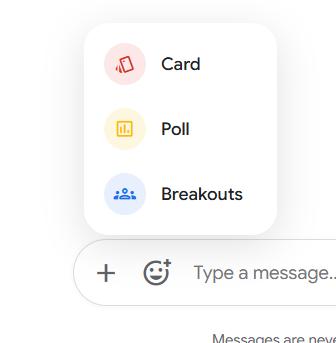
A. Breakout Rooms
Hosts can split participants into smaller groups for focused work.
* Setup: In the Breakout Panel, you can add multiple rooms, shuffle participants, or manually drag and drop users into specific zones.
* Timer: Set a duration (up to 40 minutes). The system provides a live countdown and automatically returns everyone to the main room when time expires.
* Interaction: Participants can click Help to notify the host, or Return to rejoin the main room manually at any time.
B. Interactive Cards
Use Cards to highlight specific proposals, ideas, or questions.
* Features: Every card includes a title and an optional description.
* Engagement: Participants can Upvote cards to show support or open a dedicated Discussion thread to reply without cluttering the main feed.
C. Live Polling
Gather instant consensus with the Poll tool.
* Creation: Define a question and add multiple options. You can toggle whether users are allowed to select more than one answer.
* Results: See live progress bars as votes are cast. Hosts or creators can end the poll at any time to finalize results.
3. Host Controls and Moderation
The host maintains full authority over the room to ensure a productive environment.
- Access Toggles: Switch between Open Access (anyone can join) and Trusted Access (requires manual admission) mid-session via the Settings tab.
- Privacy Control: Use the Visible Chat History toggle to determine if new participants can see previous messages.
- Participant Management: Hosts can Kick a user to remove them from the current session or Ban them to prevent them from rejoining entirely.
4. Ending a Session
When the discussion is complete, there are two ways to exit the environment:
- Leave: Participants can select Leave to exit the room while allowing the discussion to continue for others.
- End for Everyone: Hosts have the option to end the room entirely. This immediately terminates the session for all participants and wipes the temporary message history.
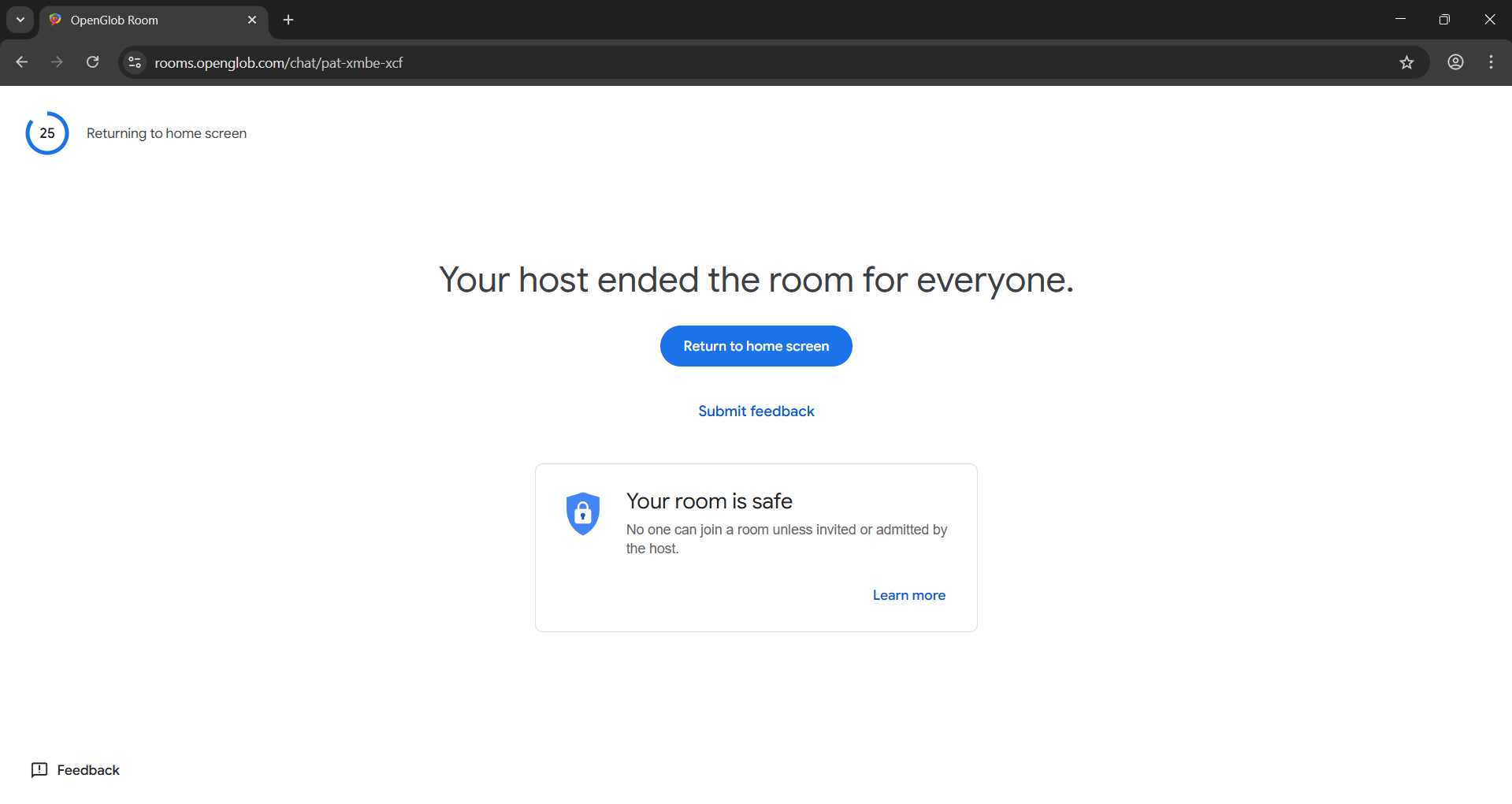
*Privacy Reminder: Messages are maintained only during the active session. Once a room is ended or becomes empty for more than 60 seconds, all data is permanently cleared from memory.